Pre-existing data files can be imported/uploaded as a layer within a PointMan Pro project via a zipped shapefile, KML/Z, or GDB file.
-
If you already have a folder that you would like to import/upload the data into, skip this step. Otherwise, create a basic folder within the desired project (You can learn how to add a folder to a project here)
- Note: The chosen folder CANNOT be a PointMan Features Folder
-
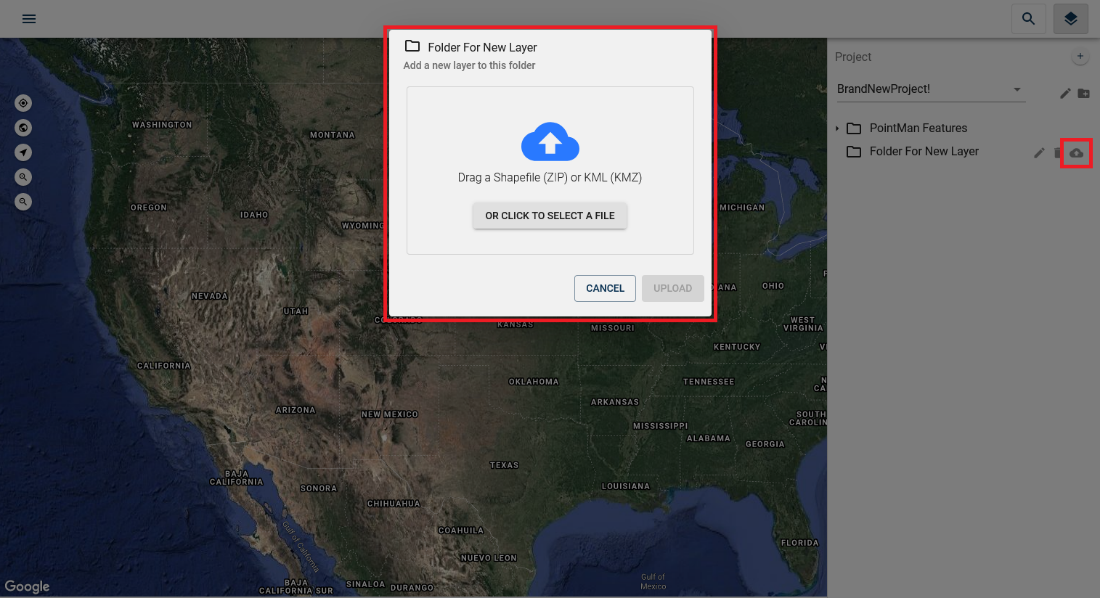
Hover over the selected folder and click on the “Upload Layer” icon – It is the cloud icon that has an up arrow inside it
-
As shown in the image below, the following dialogue will appear in the middle of the screen
-
Drag or browse for the file that you want to upload
-
Note: Shapefiles can only be uploaded as a single zipped file. To create a zipped file:
-
Combine all associated files into a folder
-
Right-click on that folder and click on the “Compress” option. For window users, you may need to hover over the “Send to” option to then see the “Compress” option
-
-
-
Click Upload
-
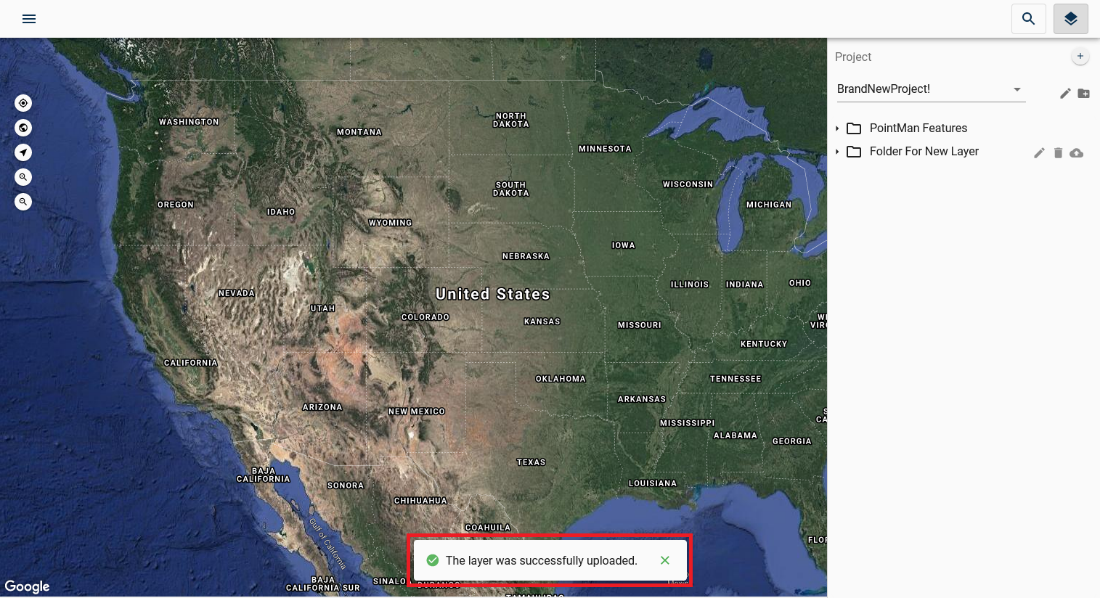
You should see the following success notification
-
**Please note that the layer may take a few minutes to load and display the data. The larger the file, the longer the system may take.
-
The layer will then need to be styled if you wish to change the appearance of the imported data