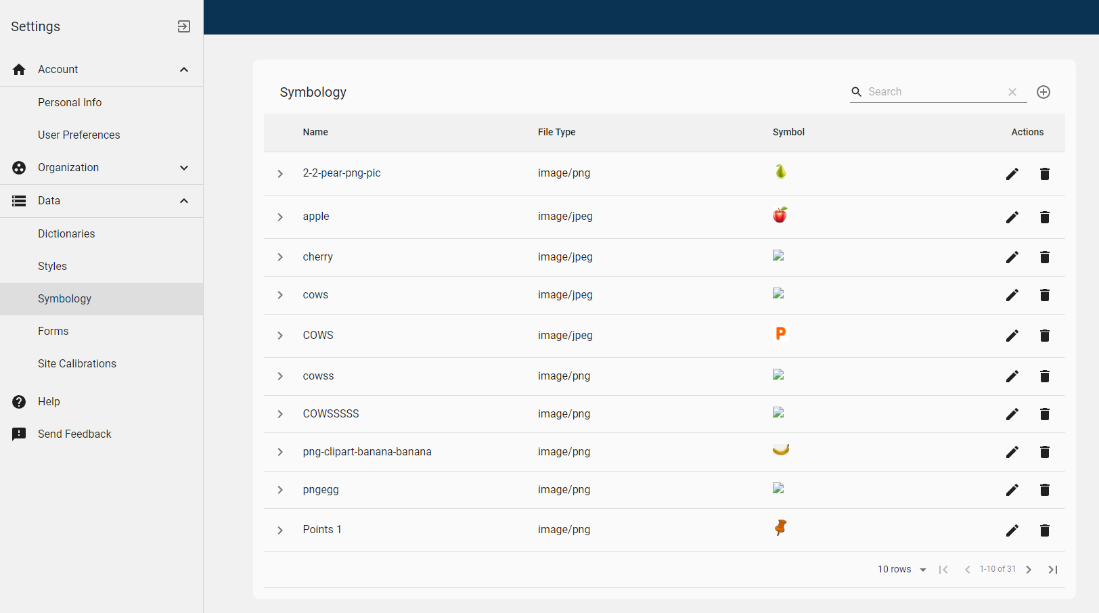
Symbology is a stylization within your Data settings that allows you to add .png or .jpeg images into your environment. These images can then be added to your data dictionary and used as vertices on your map within PointMan. Once these symbols are added to your data dictionary on cloud, they will be available to use on the mobile app.
-
Login to PointMan Pro on Cloud (https://app.pointman.com)
-
From the map view, navigate to Settings by clicking on the hamburger icon in the top left corner of the screen.
-
Select settings. Under Data, select symbology
-
Click the plus icon on the top right to add a symbol
-
Fill out all required fields and add a .png, .jpeg, or .gif.
-
Save the symbol.
-
You will now be able to see that symbol in the list, edit that symbol, or delete that symbol.
-
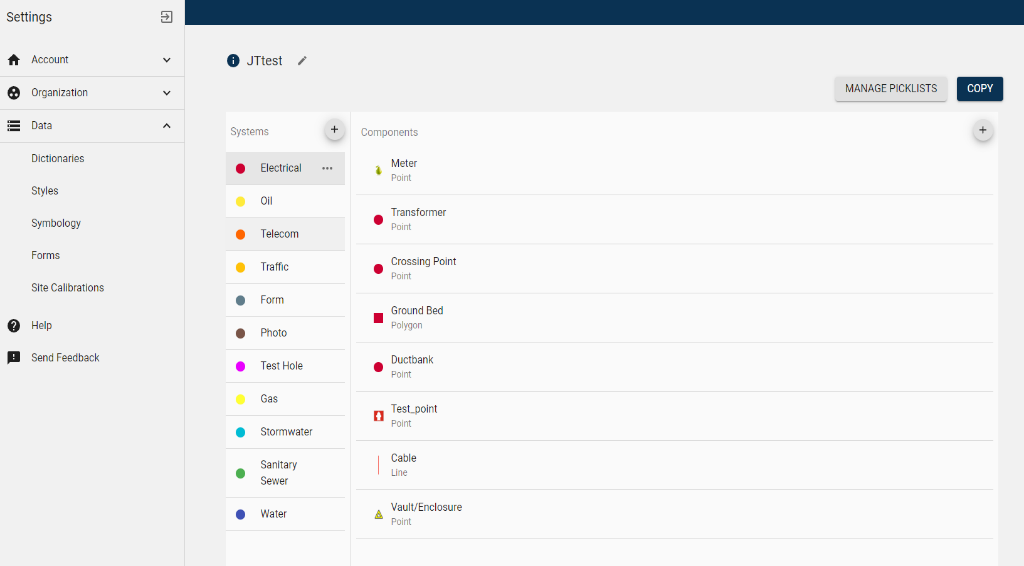
Navigate to Dictionaries from Settings
-
Select the dictionary that you are using and the necessary component for the symbol.
-
Click on the 3 dots to the right of the component name after selecting your component. Select, edit component.
-
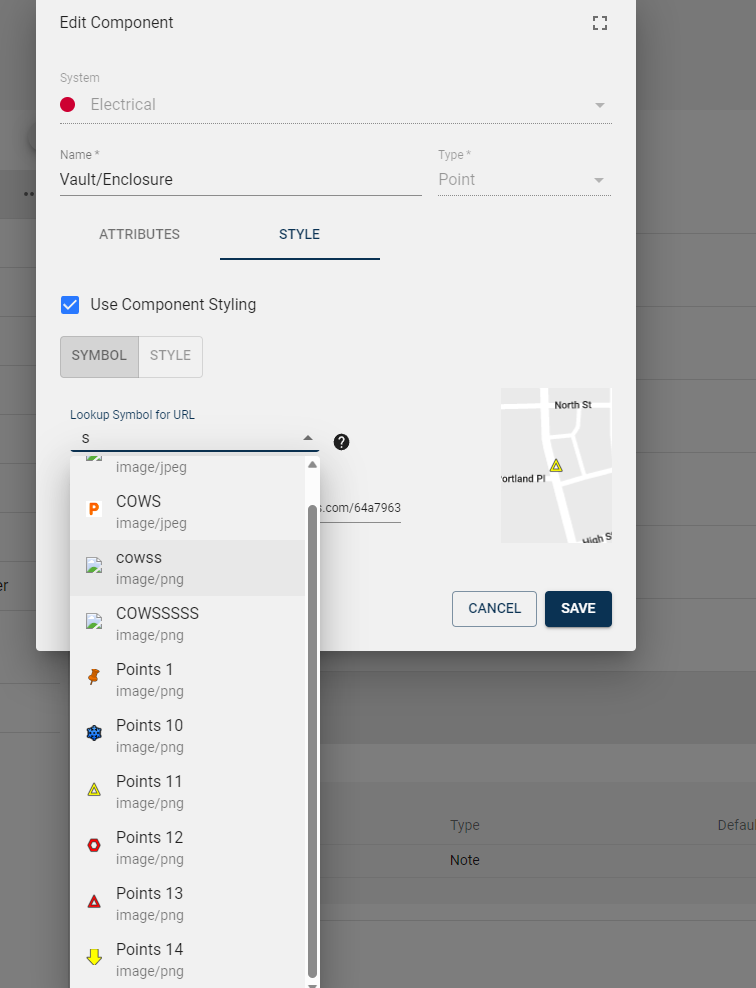
Under the style tab, check use component styling and click on “symbol”.
-
Search for the symbol you uploaded in steps 1-6.
-
From the mobile app or cloud place the features using the symbol onto the map.
-
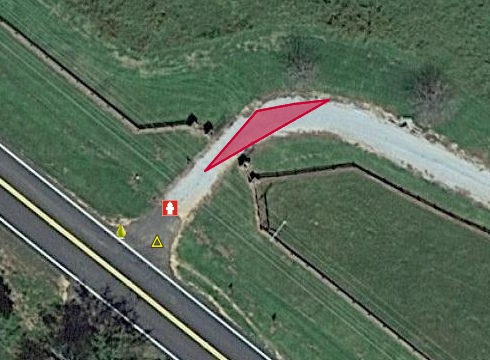
You will now see the point with your imported symbol on the map.
-
Here is an example of imported symbols on the map:
-
-