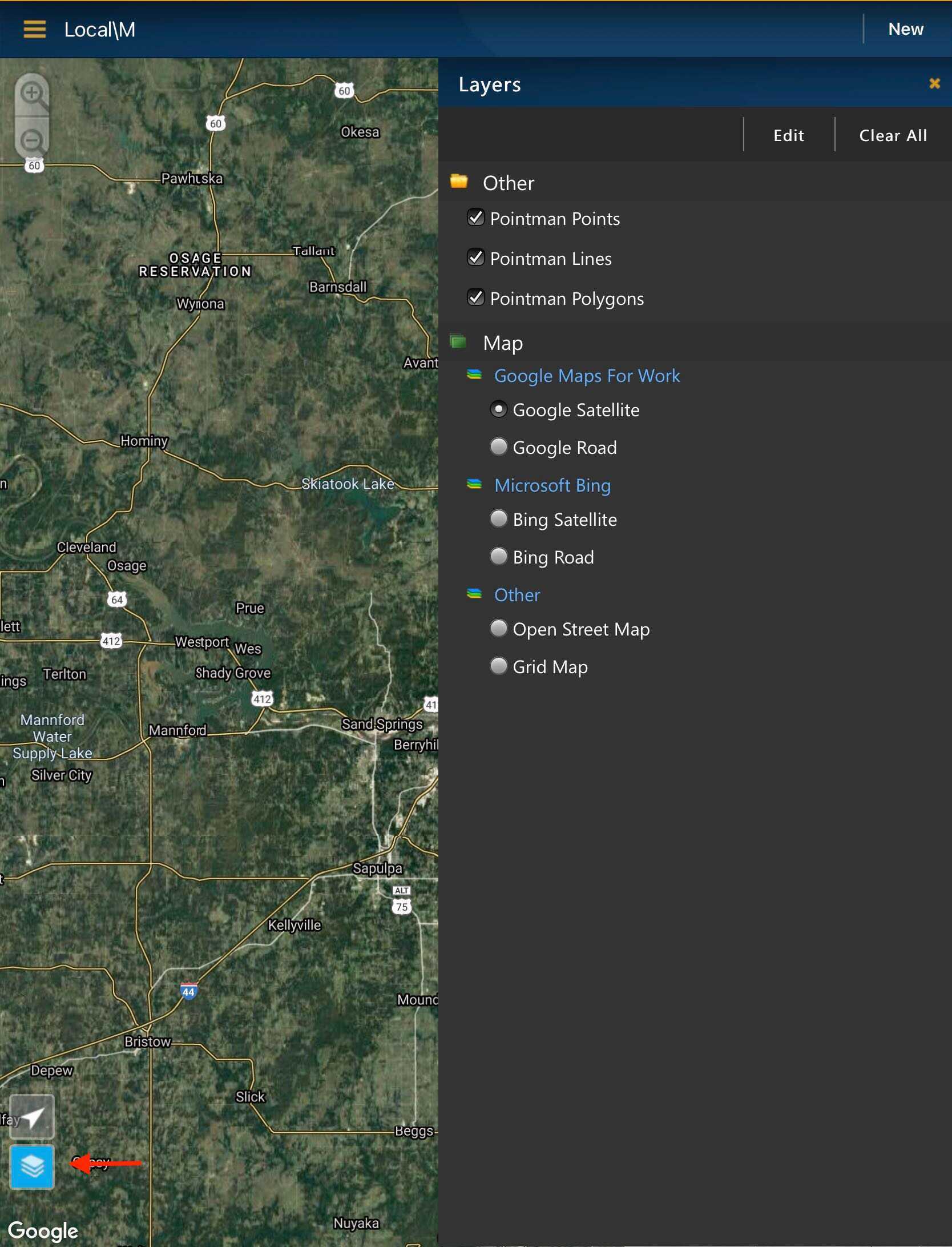
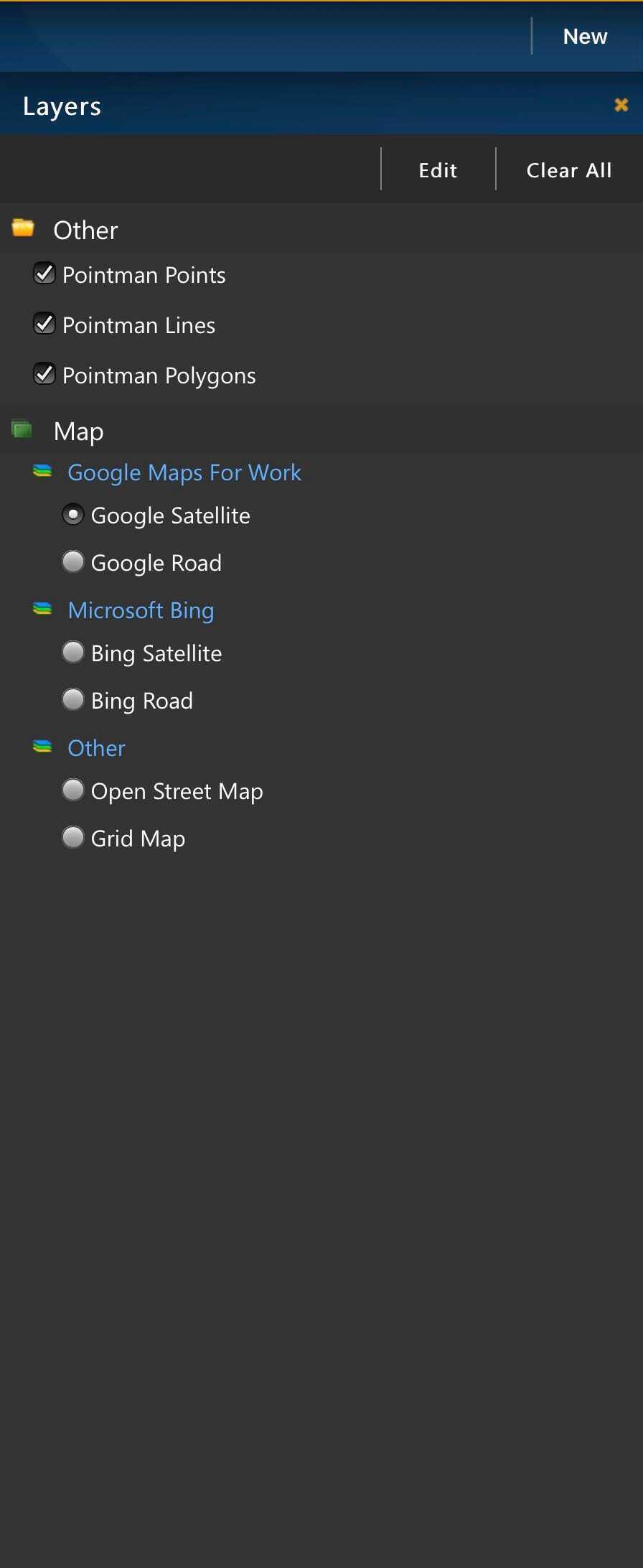
The Layers Panel displays all project layers available to view and display on the map. Access the Layers panel by tapping the Layer button in the lower left corner of the map display:
-
To show a layer on the map, select the check box next to the layer name
-
To remove a layer from the map view, clear the check box next to the layer name
-
PointMan Plus users may import additional layers from KML/KMZ files with the Edit button
-
To close the layer screen, tap the Close button in the upper right corner tap the map display or tap the layer button again.