Geoid models can be used to convert elevation measurements received by a GPS into project specific standards and to line up correctly with other survey-grade project data, features and line work. This section outlines how to set up and use Geoids in PointMan.
Geoid - Setup
-
Log into PointMan and select the desired project.
-
Tap the menu icon and then tap Settings.
-
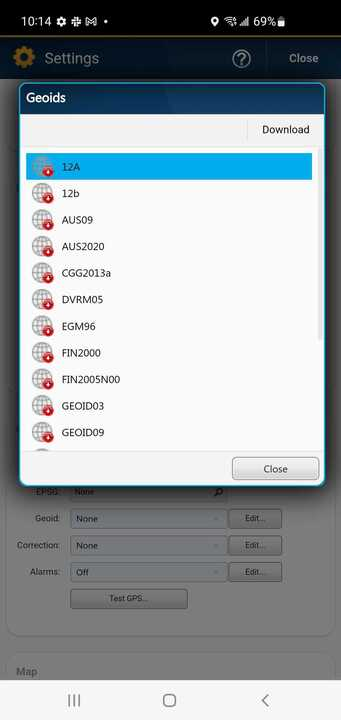
Next to the Geoid section, tap Edit.
-
Select the Geoid to download and tap Download.
-
Note: On iOS you must first download the EGM96 Geoid before you can download any other Geoids.
-
The icon will change once the Geoid is downloaded (the red part on the icon will disappear)
-
Download any other Geoids you will be using.
-
Tap Close
-
In the Geoid dropdown in Settings, select the desired Geoid.
-
Tap Close to leave PointMan settings and return to the map
Viewing Geoid Data
Once the Geoid is selected in Settings, PointMan will automatically perform post-processing to convert elevations to Geoidal heights. PointMan will also save an additional copy of the original altitude. For Android, the original altitude is ellipsoidal. For iOS, the original altitude is Geoidal based on the EGM96 Geoid.
NOTE: It is not recommended to use a Geoid with internal GPS. To use Geoids, pair an external GPS such as a Trimble GNSS unit.
Pedigree Data
Internal GPS with Geoid
-
Android – Geoid Used, Ellipsoidal Altitude, Altitude (Geoidal)
-
iOS – Geoid, Altitude (Geoidal)
Internal GPS no Geoid
-
Android – Ellipsoidal Altitude, Altitude (Orthometric)
-
iOS – Altitude (Geoidal)
External GPS with Geoid
-
Android – Geoid Used, Ellipsoidal Altitude, Altitude (Geoidal)
-
iOS – Geoid Used, Ellipsoidal Altitude, Altitude (Geoidal)
External GPS no Geoid
-
Android – Ellipsoidal Altitude, Altitude (Orthometric)
-
iOS – Ellipsoidal Altitude, Altitude (Orthometric)
Troubleshooting
Note about Uninstalling PointMan: If you are a PointMan Plus user, uninstalling the PointMan app will remove all project data stored on your device. It is important to backup any project data before uninstalling the mobile app.
For questions or issues, please send an email to support@prostarcorp.com with the following:
-
Brief description of what you are experiencing
-
Include screenshots / screen recordings showcasing the issue if any
-
Include supporting data files showcasing the issue if any
-
-
The devices you are using and if you have anything set in the GPS settings
(ex: GPS, Locator, Mobile Device, EPSG, Correction Service, etc.)
-
List of steps that were already taken to troubleshoot the issue
The PointMan Support Team is available from 8:30am to 4:30pm MST Monday through Friday.