-
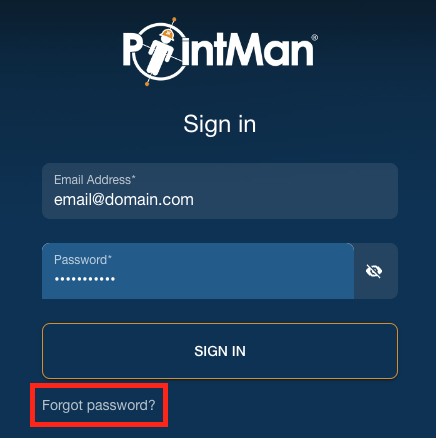
Go to https://pointman.cloud/signin and click the Forgot
-
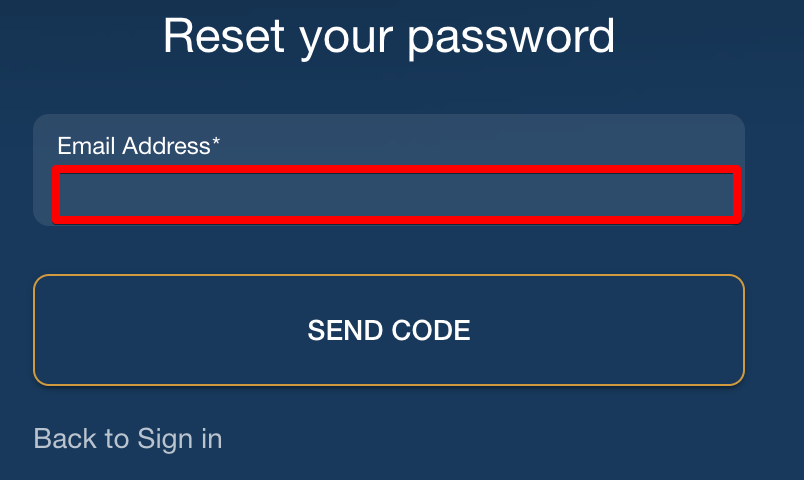
Enter the email address associated with your account
-
Click “Send Code” and you willbe prompted to enter a verification code
- You will receive an email containing a 6-digit verification code from no-reply@verificationemail.com
-
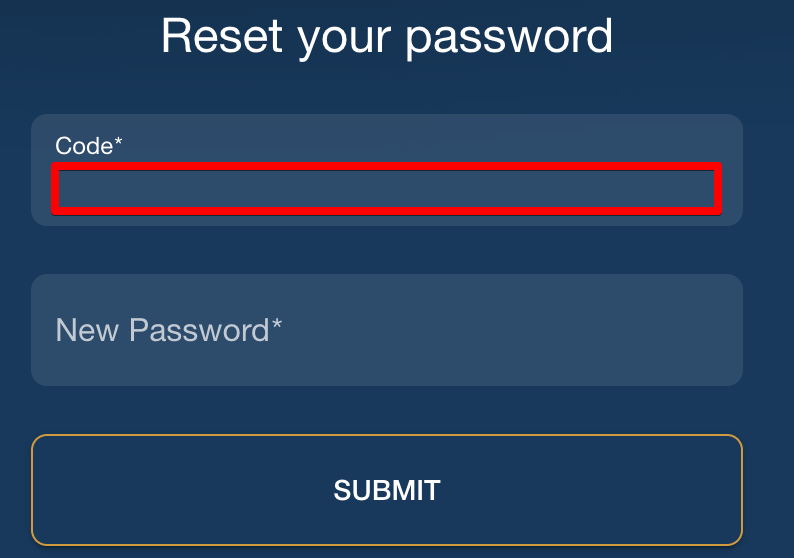
Copy and paste the 6-digit code from the email
-
Fill in the New Password field with your new password.
Your new password must have at least:-
1 number
-
1 Lower-case letter
-
1 Upper-case letter
-
1 Special character
-
8 characters in total length
-
-
Click “Submit” to reset your password
-
If successful, you will be directed to the “Sign In” page
-
You may now log in to the PointMan app using the new password
For Questions or Issues
Please fill out the request form (https://pointman.com/custom-support/) or send an email to support@pointman.com and include the following:
-
Question / Brief description of what you are experiencing
-
Include screenshots / screen recordings showcasing the issue if any
-
Include supporting data files showcasing the issue if any
-
-
List of steps that were already taken to troubleshoot the issue
The PointMan Support Team is available from 8:30am to 4:30pm MST Monday through Friday.