iPhone/ iPad Sharing Steps Tutorial Video
-
Download OneDrive or Outlook onto your mobile device and login with an existing account.
-
Find the default files app on either your iPhone or iPad mobile device and open it
-
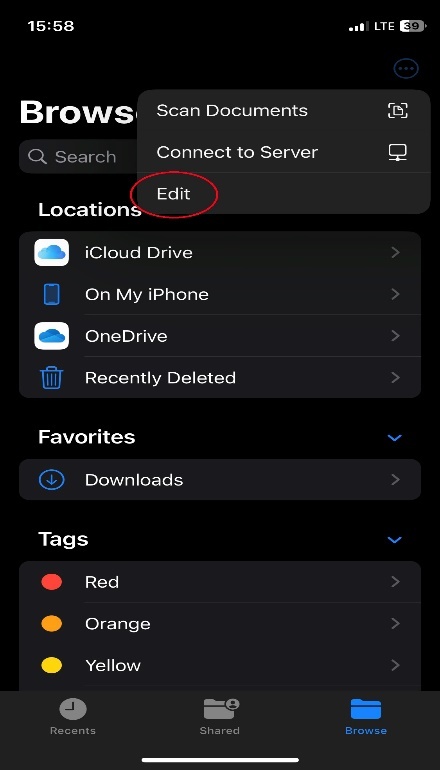
On an iPhone, navigate to the browse section of the Files app. Then click on the 3 dots in top right corner and choose “Edit”.
-
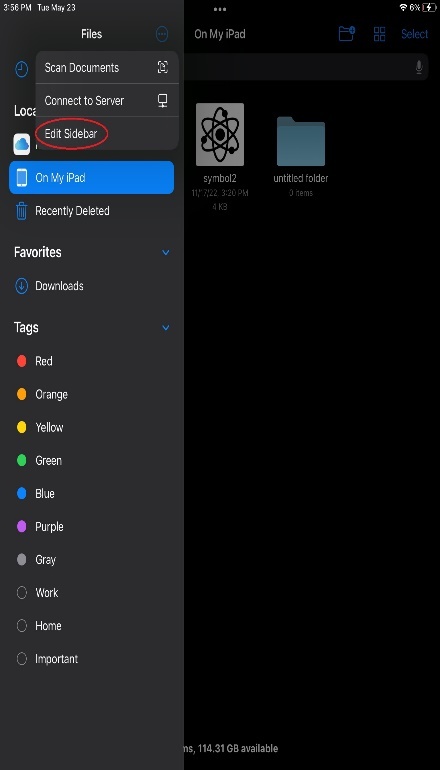
On an iPad, click on “Files” in the top right corner of the Files app. Then, click on the 3 dots in the top right corner of the panel and choose “Edit Sidebar”.
-
-
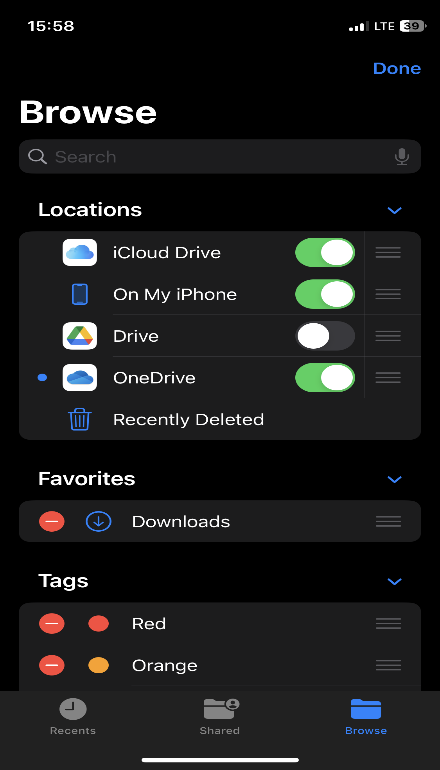
In the editing window, you should see OneDrive appear as an option with a slider to its right. Click on the Toggle button (slider should become green) and enable it on the Files app.
-
Return to the PointMan app and select the feature you would like to export.
-
Choose your attachments and file types and click “ok.
-
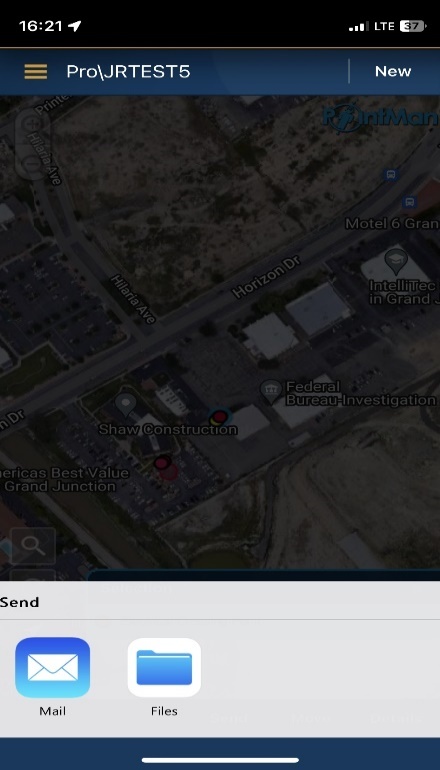
A Send window will appear with two options: “Mail” and Files”.
-
Select files and go to locations under browse. Here you will find OneDrive as an available option.