This section covers how to import a layer in PointMan Plus. Supported formats are KML and KMZ files.
-
Download the desired import file to your mobile device. This can be found in My Files (app) > Internal Storage > Download
-
Log in to PointMan
-
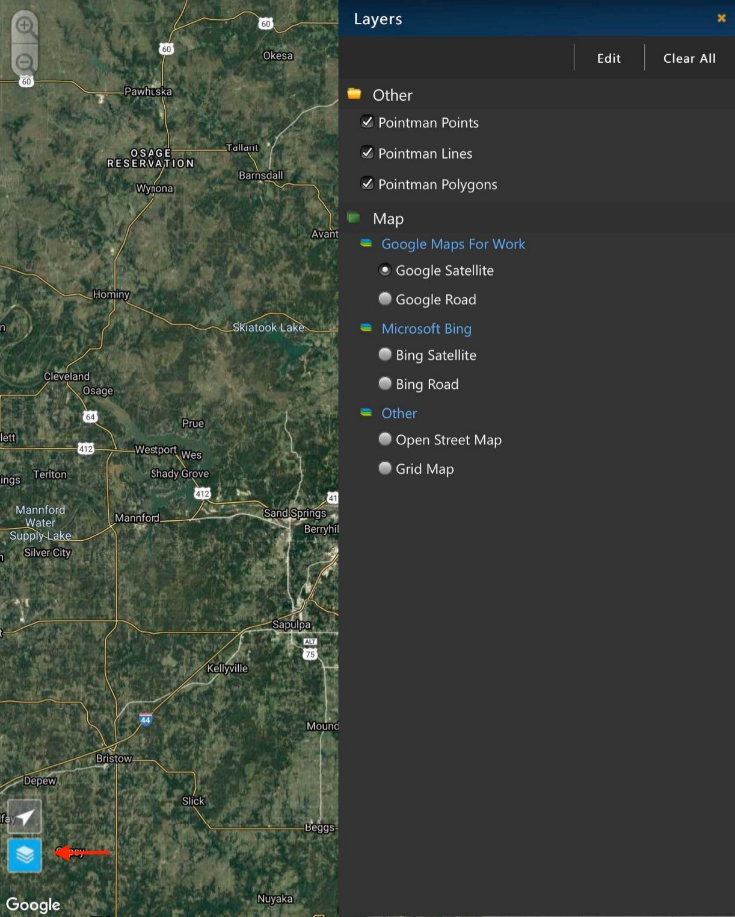
Tap the layer panel on the bottom left corner of the map display
-
Tap Edit on the top of the layer panel
-
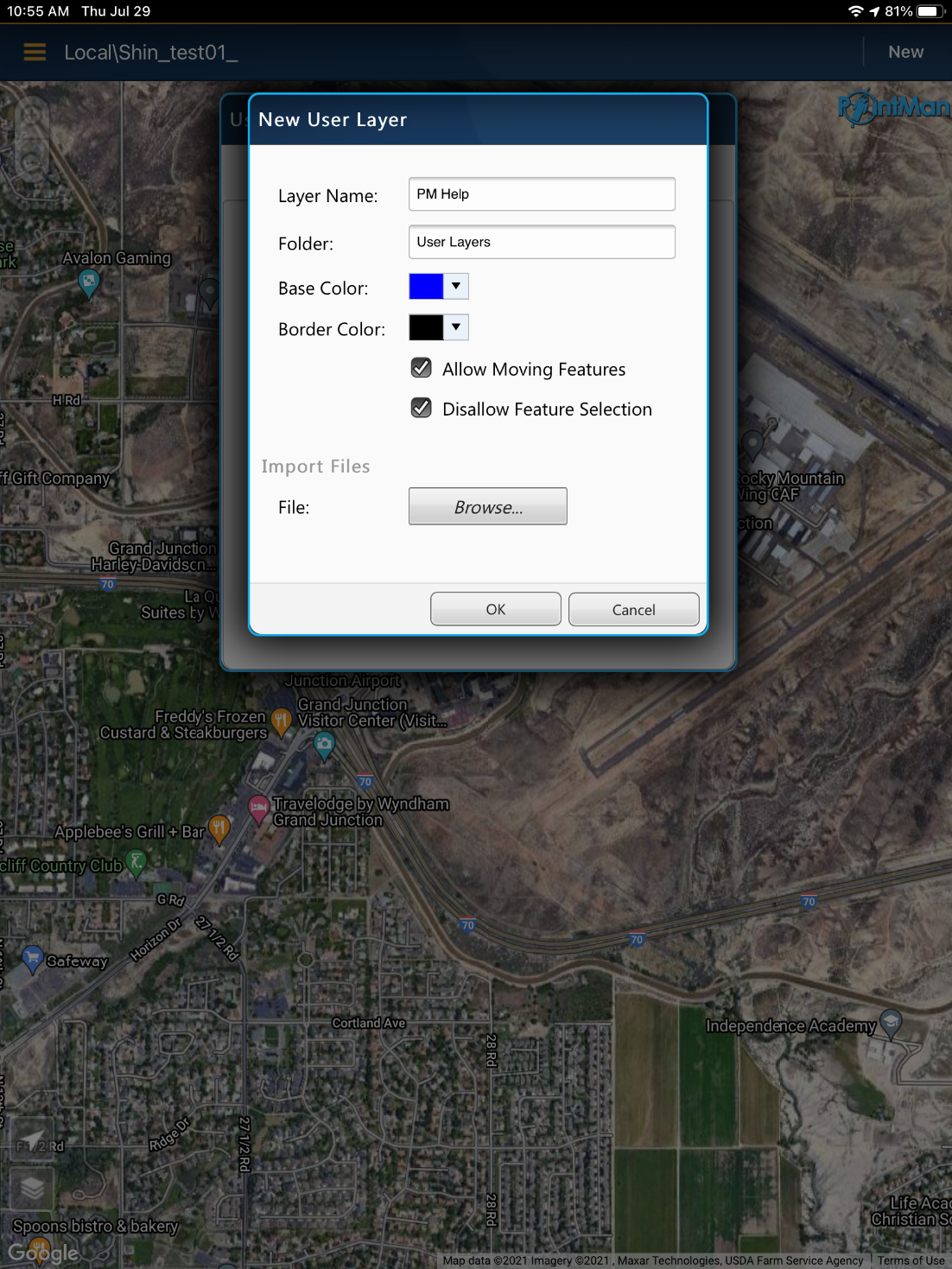
Tap New
-
Fill in Layer Name and Folder. Folder is the layer group the layer will show up under in the layer panel.
-
Choose a color style and set any of the desired check box options.
-
Tap Browse, navigate to the folder where the KML/KMZ file is stored: Files > Internal Storage > Download then tap OK
-
Tap OK again to save the uploaded file. The map will reload.
-
Tap the Layer Panel button in the bottom left corner of the screen and then tap the checkbox next to the layer name to enable display of the new layer.