Mobile Device Setup
Setting up Internet Service:
-
If the Emlid comes with its own internet service, pair the mobile device with the Emlid’s Wi-Fi.
-
If the mobile device has its own internet service, set the mobile device to use it.
-
If using a separate hotspot or Wi-Fi, pair the mobile device to that hotspot or Wi-Fi.
Emlid Flow App Setup
-
Download and install the Emlid Flow app from the Apple App Store
-
Power on the Emlid GPS unit
-
Open the Emlid Flow app and select the Emlid receiver
-
Connect your receiver to the internet via Wi-Fi or HotSpot if it isn’t already
- NOTE: The Reach receiver and mobile device must be on the same network for PointMan to connect to the receiver. Essentially, the receiver WiFi setting should be set to whichever internet service the mobile device is connected to.
-
Open the Correction Input settings
-
Select “Bluetooth”
- NOTE: Do not input your correction service details into the Flow app as you will do so within the PointMan app instead.
-
-
Set the Base Output to OFF
-
Go to Settings
-
Check for any firmware updates and install them
-
Go to Bluetooth and set Discoverability to On
-
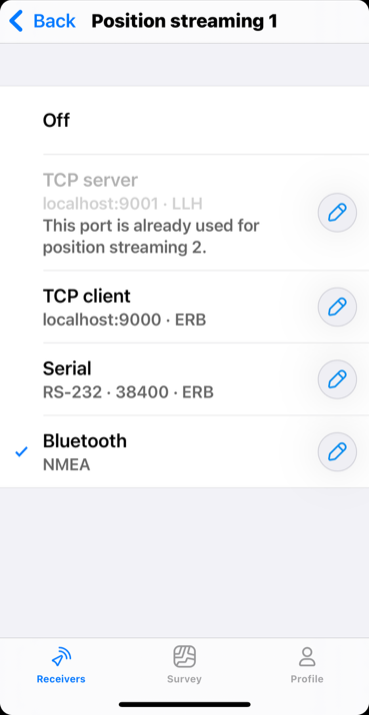
Set Position Streaming 1 to Bluetooth
-
-
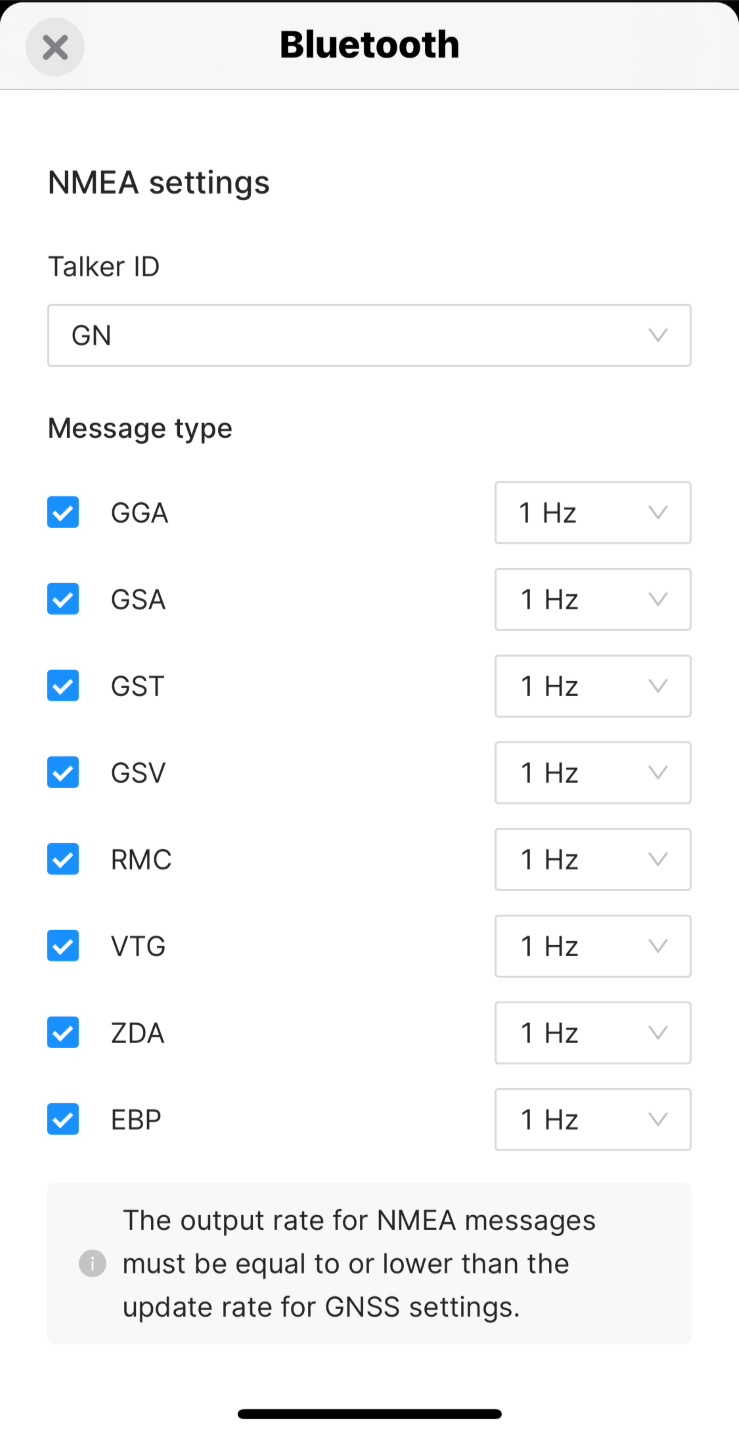
Then tap the Pencil icon to modify the option settings
-
Make sure GGA, GST, and GSA are selected and set to 1 Hz
-
-
-
Exit out of the Settings page and return to the receiver menu page. Tap on the Emlid receiver name, tap Disconnect, and completely close out of the Emlid app before attempting to pair the receiver in PointMan
PointMan App Setup
-
Open the PointMan app and go to the PointMan Settings page
-
Tap “Configure Bluetooth”
-
Scan for and select your Emlid receiver
-
Once paired, return to the PointMan app and select “Emlid” from the GPS dropdown
-
A second GPS dropdown will appear, select your receiver
-
If you are planning to use a Correction Service, steps for setting that up can be found here: Setting Up Differential Corrections Services
- Note: If using a correction service, be sure to select the EPSG associated with the correction service you are going to use to get the proper GPS values. In most cases for North American users, the EPSG to be used should be Code 6318 — NAD83(2011). Please check with your Correction Service representative to verify which EPSG you should be using in your area.
-
Set the Antenna Height and Geoid at your discretion
-
Set Alarms if you have any data requirements that must be met: Alarms
-
Tap the “Test GPS” button to verify the connection to your receiver. You will get an OK notification if the receiver and PointMan are properly connected
Troubleshooting
Troubleshooting Tips: Troubleshooting Issues with GPS/GNSS Units
Note about Uninstalling PointMan: If you are a PointMan Mobile License user, uninstalling the PointMan app will remove all project data stored on your device. It is important to backup any project data before uninstalling the mobile app.
For questions or issues, please fill out the request form (https://pointman.com/custom-support/) or send an email to support@pointman.com and include the following:
-
Brief description of what you are experiencing
-
Include screenshots / screen recordings showcasing the issue if any
-
Include supporting data files showcasing the issue if any
-
-
The devices you are using and if you have anything set in the GPS settings
- ex: GPS, Locator, Mobile Device, EPSG, Correction Service, etc.
-
List of steps that were already taken to troubleshoot the issue
The PointMan Support Team is available from 8:30am to 4:30pm MT Monday through Friday.