This section covers how to setup custom systems and components in PointMan for creating map features.
-
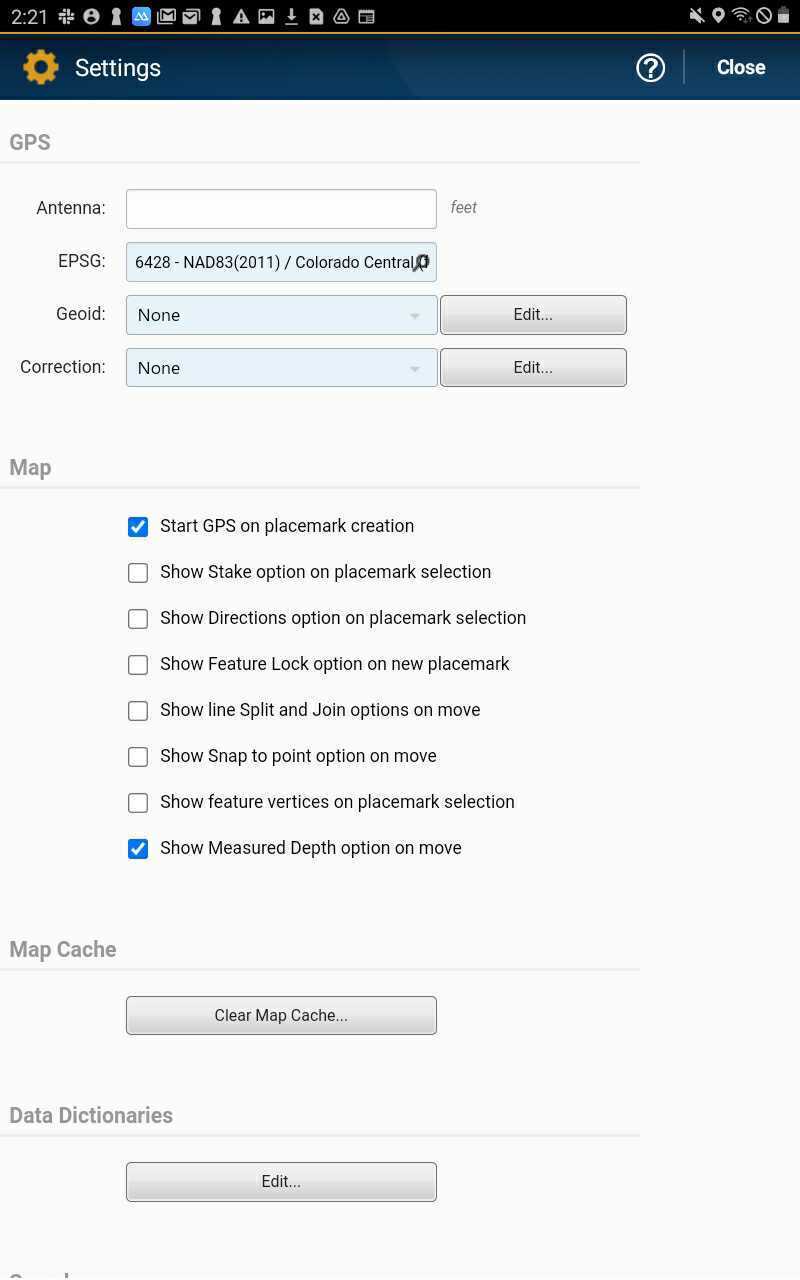
On the main Map display, tap the Menu icon
-
Tap Settings
-
Under the Data dictionary section, tap Edit
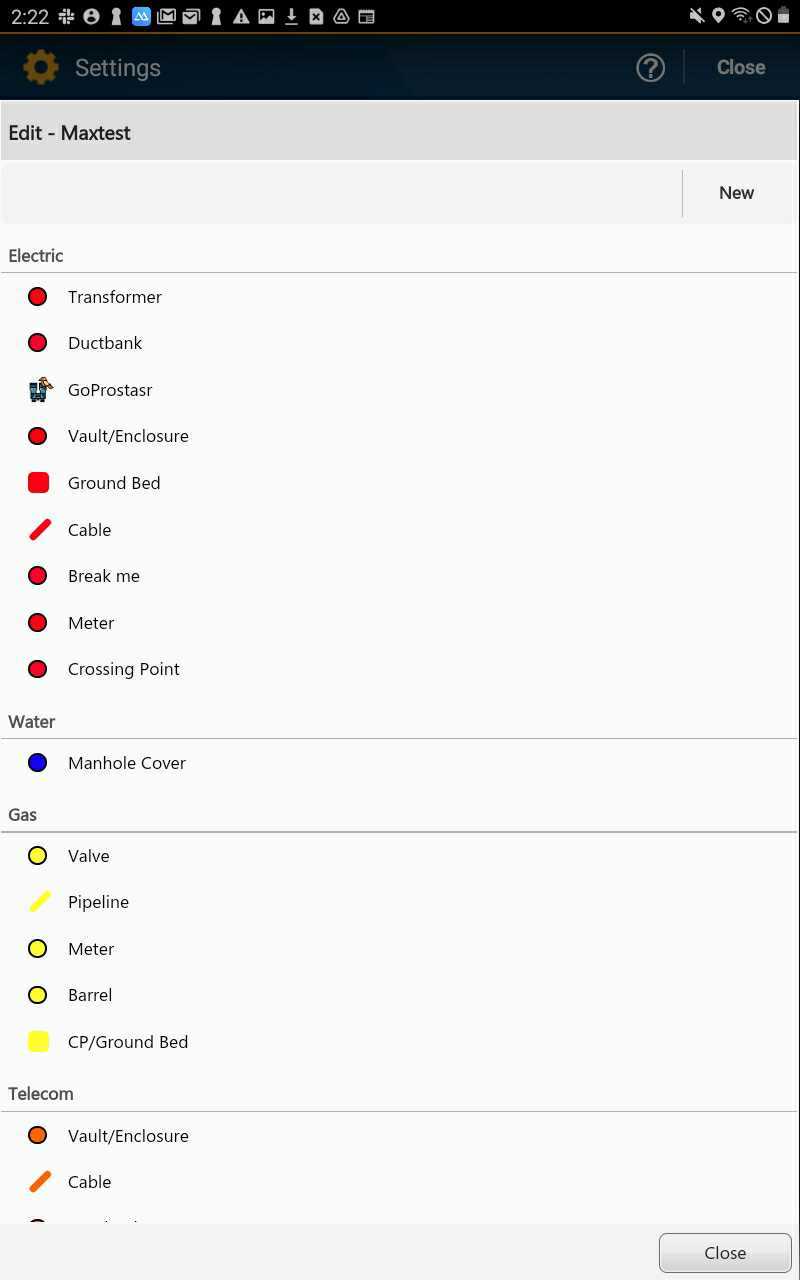
Creating New Components
-
Tap New
-
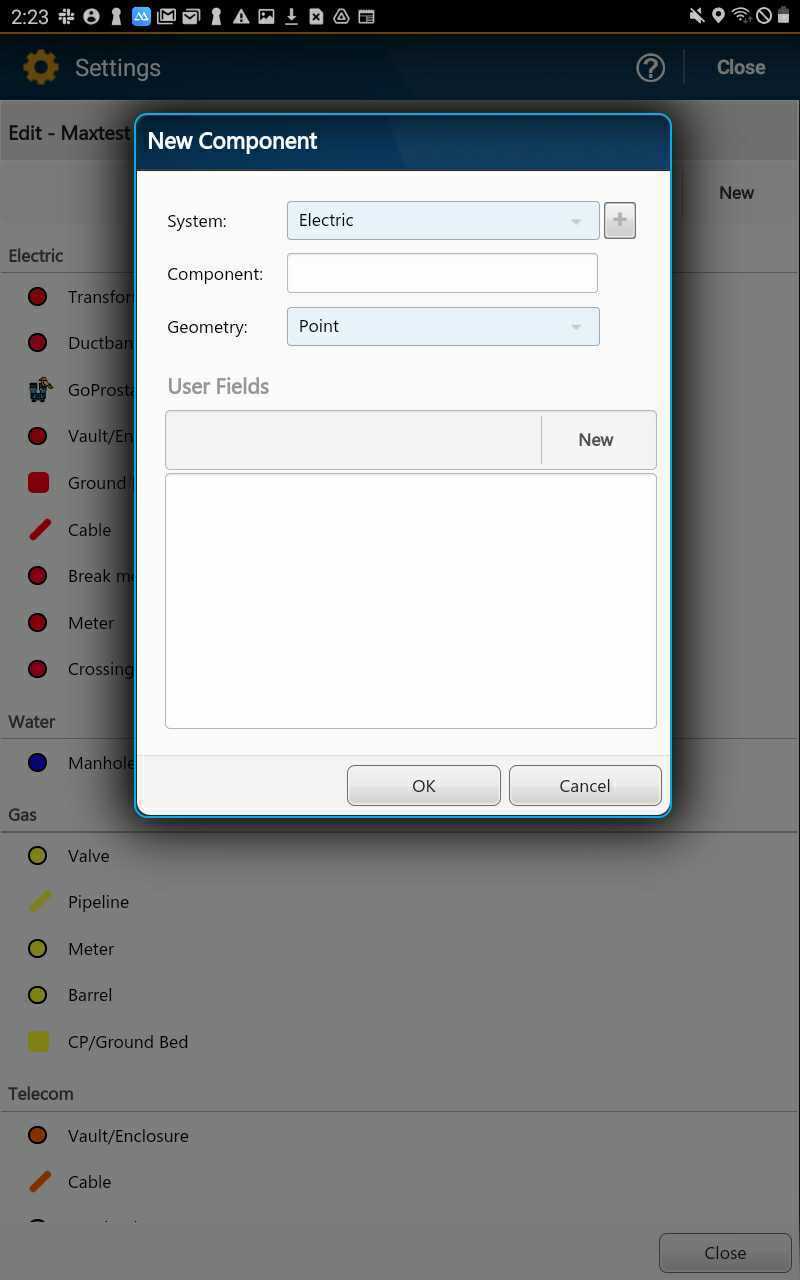
Select an existing System from the drop-down
-
Or create a new System:
-
Tap the + button to add a system
-
Enter the System name
-
Change the color by tapping the Color pick box
-
Tap OK to save
-
-
Enter the Component name
-
Select the Geometry (point, line, polygon)
-
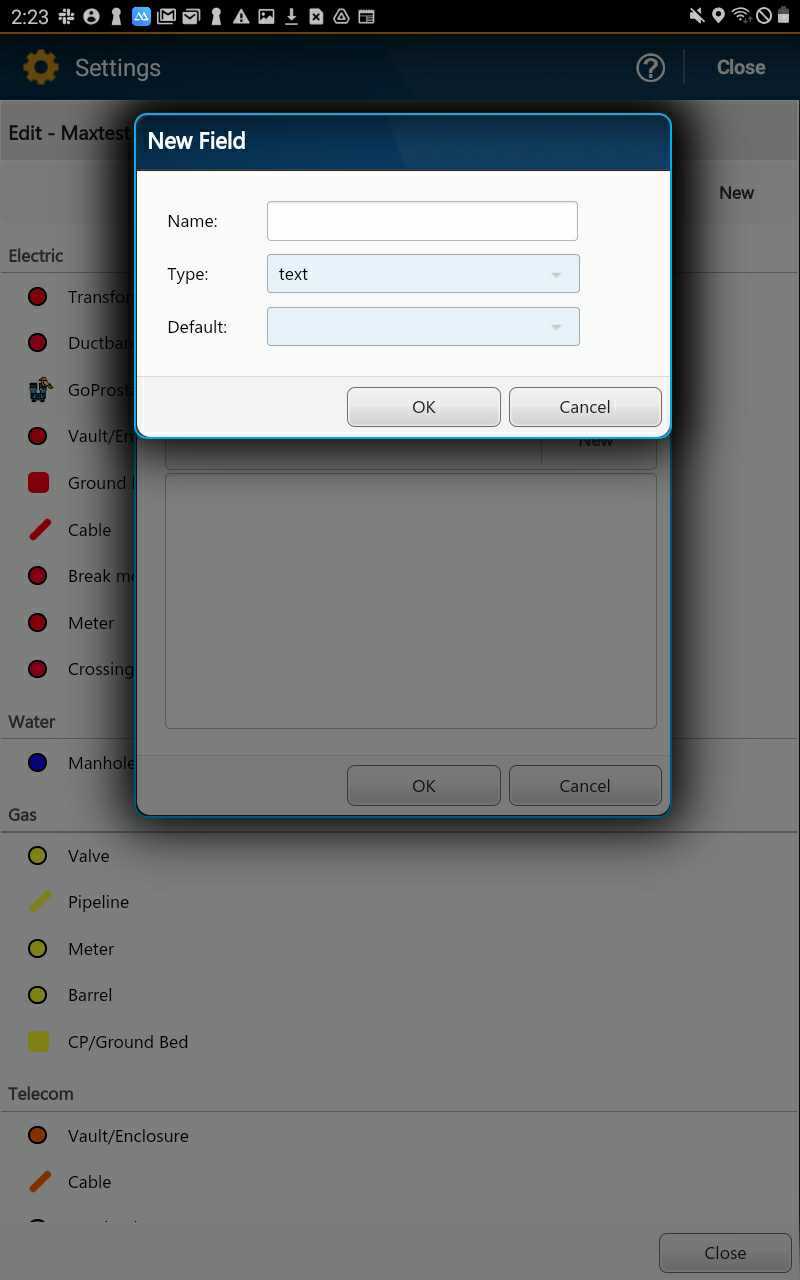
Custom attribute fields can be added to the component in the User Fields section:
- Tap New
-
In the Name field, type the desired attribute name
-
In the Type Field, pick from the dropdown list. If there are multiple values, we recommend pick list. Remember this can be edited/updated/deleted at any time
-
In the default field, select how you would like the attribute to display, last saved value is usually the most often used
-
If pick list was chosen, type one value for each line
-
Tap OK to add the new field
-
-
When finished, Tap OK to save the new component.
Editing and Deleting Components
-
Select the component in the Edit Data Dictionary list
-
To edit: Tap the Edit button, make any necessary changes and tap OK
-
To delete: Tap the Delete button
-
To move the feature up or down the list: Tap the up arrow or down arrow