Details
Accuracy
-
Without any additional subscription or cost, the Flex unit provides 30 cm – 60 cm (sub-meter) accuracy and includes full access to an unlocked RTK rover workflow.
-
For higher accuracy readings and/or locations with little to no cellular coverage, tokens can be purchased for full access to the Atlas L-Band Correction Service.
-
Provides accuracy down to 5 cm RMS
-
Expect a typical convergence time of 10 – 40 minutes
-
Unlimited switching between L-Band and RTK
Compatibility
-
Android and iOS
-
Can be used with other CORS or VRS Networks
Additional Information
-
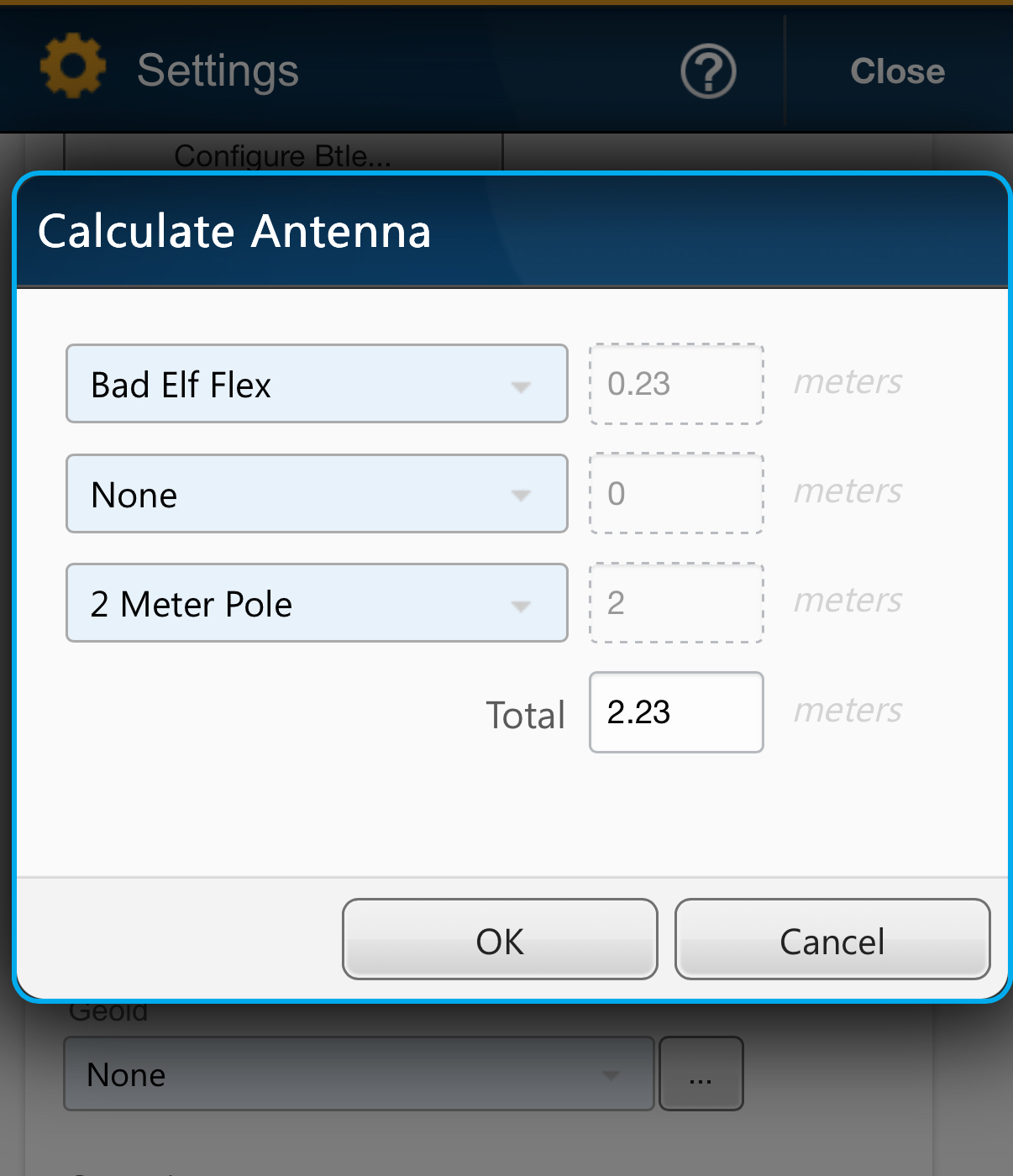
The Helical Antenna Phase Center is 23cm above the base of the Flex unit without an adapter installed and 24.5cm with an adapter installed. Note: Please include these measurements when setting your Antenna Height in the PointMan Settings page.
-
If you require an RTK survey-grade rover for use more than 30 to 40 days a year, consider the Extreme bundle.
-
Please visit the Bad Elf website for more information: https://bad-elf.com/pages/flex
-
Download the User Manual here: https://epo.bad-elf.com/webcontent/docs/manuals/Product-Manual-Bad_Elf_Flex-2.0.pdf
-
For Firmware Updates: https://badelf.freshdesk.com/support/solutions/articles/5000857156-bad-elf-flex-updating-firmware-using-a-usb-drive
Setup
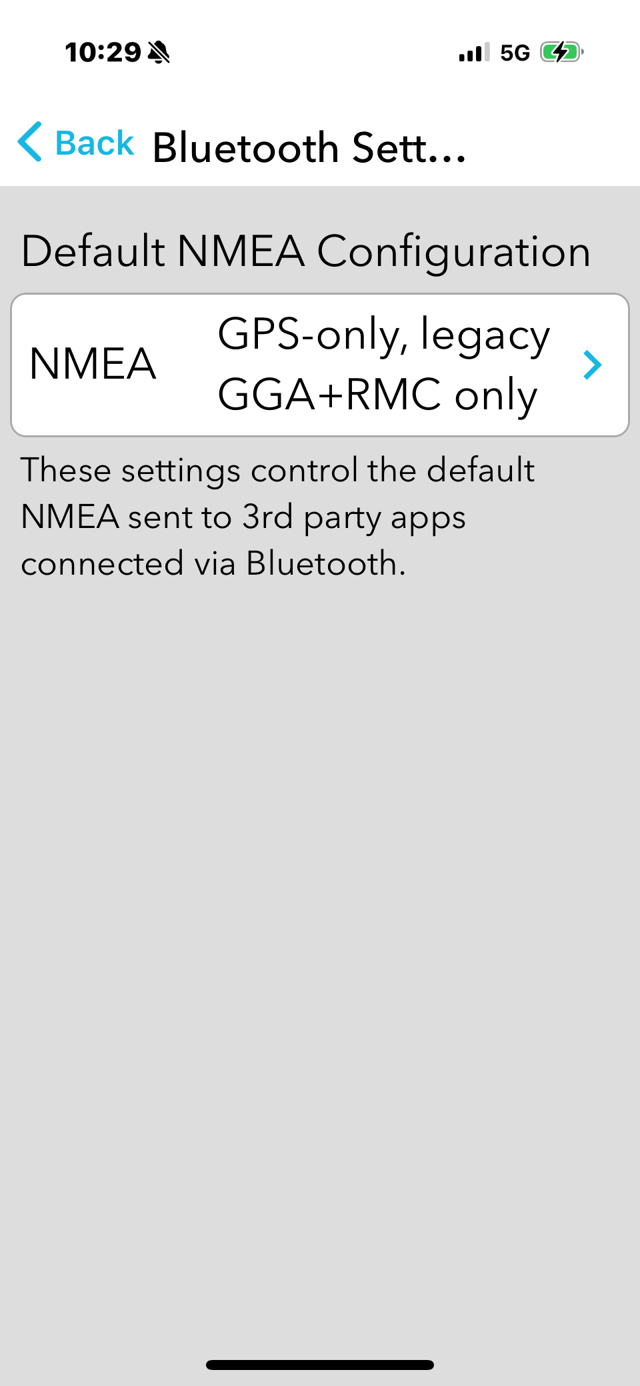
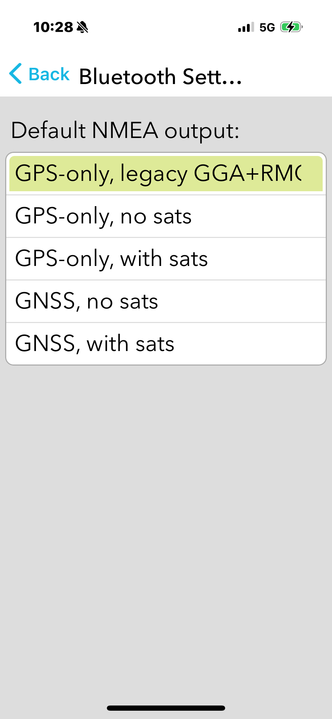
Before pairing the Bad Elf Flex with the PointMan app, please ensure that the following setting is made through the Bad Elf Flex app.
-
Launch the Bad Elf Flex app. Then go to the Bluetooth Settings and open the NMEA options
-
Select “GNSS, with sats”
Pairing with the PointMan app
Note: The steps are the same for pairing the Flex Standard and the Flex Mini with PointMan on both Android and iOS devices.
-
Turn on the Bad Elf Flex by holding down the power button
-
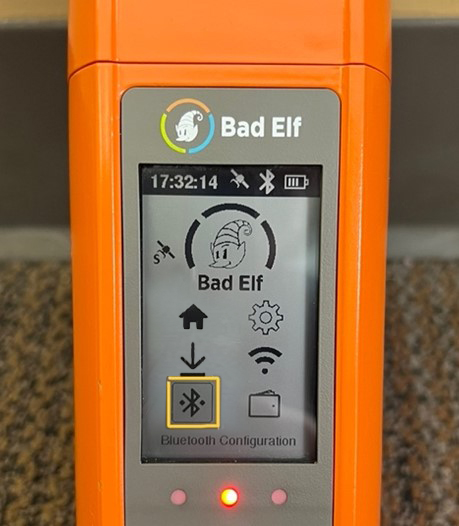
Wait for the initial Main Menu to appear and select the Bluetooth menu in the Flex unit
-
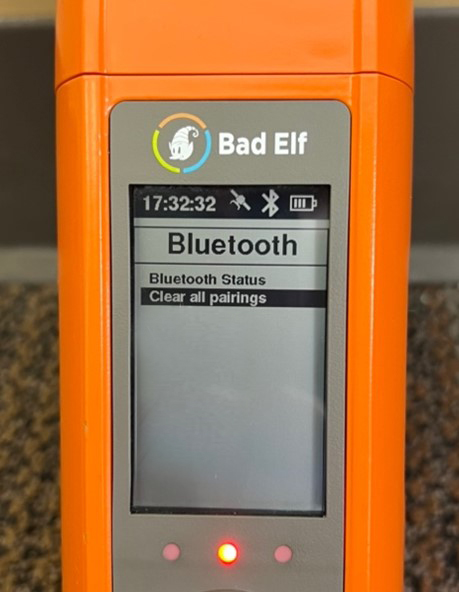
Select “Clear All Pairings” to make sure no other devices are connected to the Flex unit
-
Open the Android Settings app to the Bluetooth Settings page. Turn on Bluetooth and Select the device named “Bad Elf Flex #...”
-
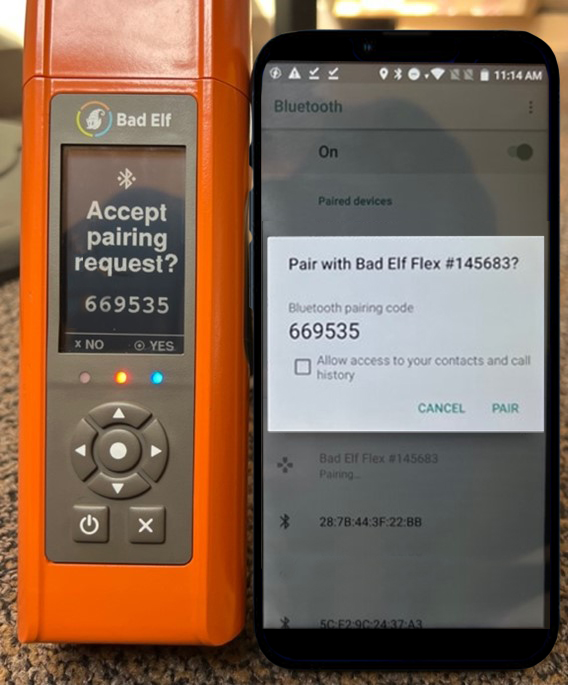
Make sure that the code on both devices matches. Select the “Yes” option on the Flex unit (center button) and “Pair” on the mobile device to allow them to pair together
-
Open the PointMan app and Login to your project
-
Navigate to the PointMan Settings page by tapping the Menu button in the upper-left corner of the screen
-
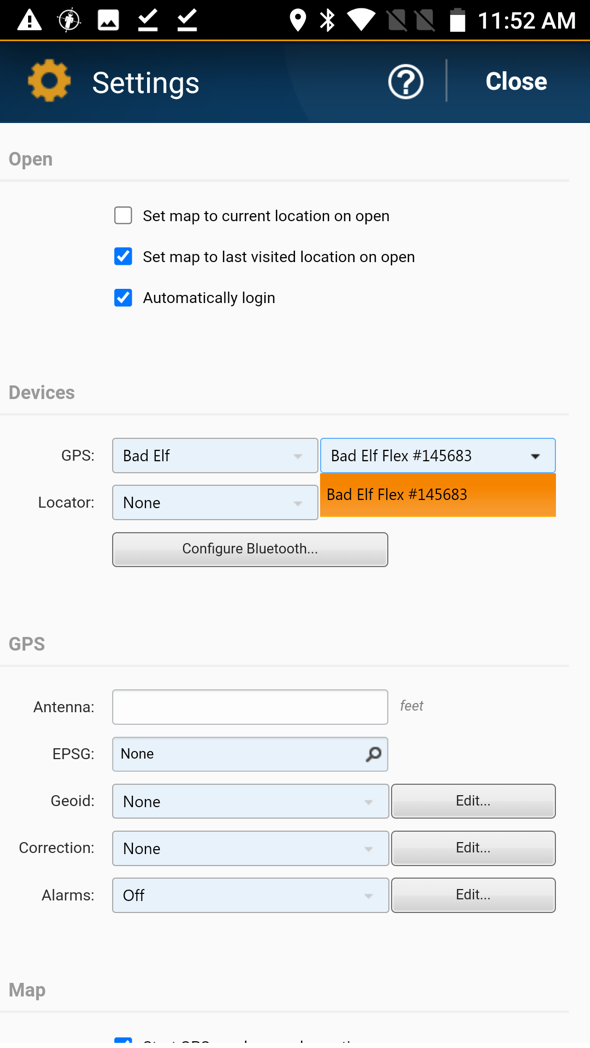
Under the “Devices” section, tap the dropdown next to the “GPS” label and Select “Bad Elf Flex”
-
Another dropdown will appear to the right. Select your Flex unit model. It should appear as “Bad Elf Flex #...” (Note: On iOS, a second dropdown may not appear and will not need to be set.)
-
Under the “GPS” section, there is a text field for the Antenna height. Use the Antenna Height calculator (the button is to the right of the Antenna field) to select the paired GPS device and the proper pole measurement.
- Scroll through the rest of the PointMan Settings page and set any additional options at your discretion.
Tokens
If you have Tokens with Bad Elf and would like to have a more accurate GPS reading:
-
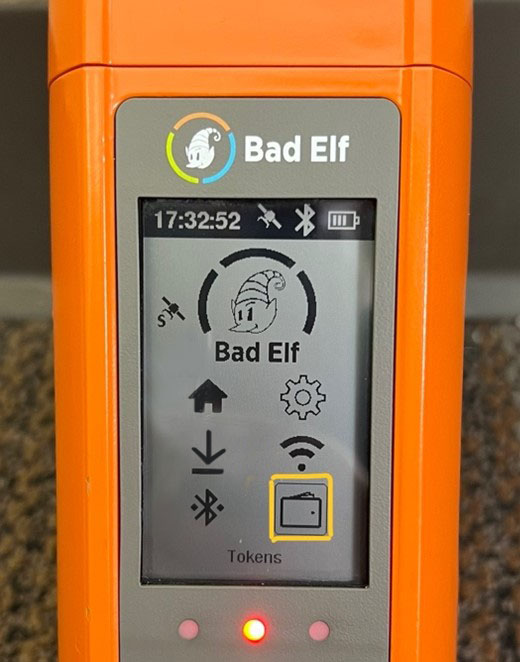
On the Main Menu screen, go to the Tokens menu located in the bottom-right corner
-
Select the center button to confirm “Extreme Mode”.
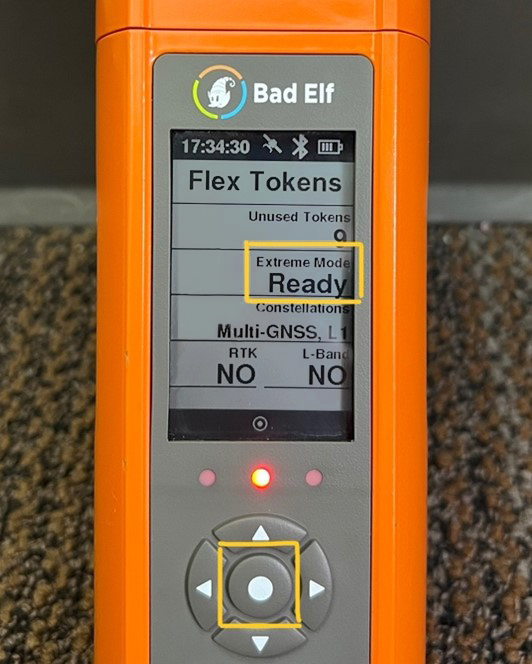
Note: This change can be seen in the Status Menu (black dialogue box located in the upper-right corner during Data Collection mode on PointMan), where “Fix type” will display “RTK” instead of “GPS”. The Token you used will be active for 24 hours.
Troubleshooting
Troubleshooting Tips: Troubleshooting Issues with GPS/GNSS Units
Note about Uninstalling PointMan: If you are a PointMan Mobile License user, uninstalling the PointMan app will remove all project data stored on your device. It is important to backup any project data before uninstalling the mobile app.
For questions or issues, please fill out the request form (https://pointman.com/custom-support/) or send an email to support@pointman.com and include the following:
-
Brief description of what you are experiencing
-
Include screenshots / screen recordings showcasing the issue if any
-
Include supporting data files showcasing the issue if any
-
-
The devices you are using and if you have anything set in the GPS settings
- ex: GPS, Locator, Mobile Device, EPSG, Correction Service, etc.
-
List of steps that were already taken to troubleshoot the issue
The PointMan Support Team is available from 8:30am to 4:30pm MT Monday through Friday.