This section covers how to connect, use, and troubleshoot the 3M™ Dynatel™ X-series Locators.
3M™ Dynatel™ X-series Locator Functions
Note: PointMan currently only supports the Cable/Pipe Locator Function. Functions that are currently in progress are the Fault, Marker, and Path Functions.
List of Cable Function Modes:
-
Trace View (Cable View)
-
Directional Null
-
Directional Peak
-
Differential Peak
-
Special Peak
Supported Models:
-
3M™ Dynatel™ Locators 2550X-ID/2573X-ID Series
-
3M™ Dynatel™ Locators 7550X/7573X Series
-
3M™ Dynatel™ Locators 2550X/2573X Series
For more information regarding the 3M™ Dynatel™ X-series Locators themselves, please visit https://www.3m.com/3M/en_US/p/c/tools-equipment/detection-monitoring/utility-locators-accessories/utility-locators/ or call the 3M support team at (1-888-364-3577).
Android/iOS Setup:
-
Turn on the locate tool
-
Log into PointMan and open a project
-
Tap the Menu in the upper left corner, and then tap Settings
-
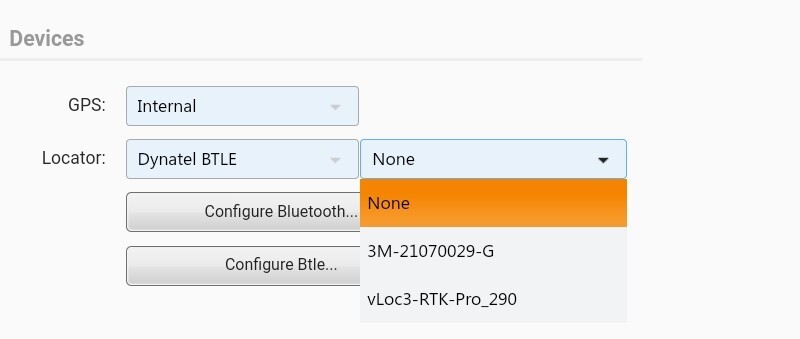
Under the “Devices” Section next to the “Locator” label, select the drop-down menu and click “Dynatel BTLE”
-
Tap “Configure Btle” for a faster connection. A “Btle Devices” dialogue will appear.
-
Tap “Scan” (Note: If applicable, iOS may ask if you want to allow Bluetooth, tap “Yes”.)
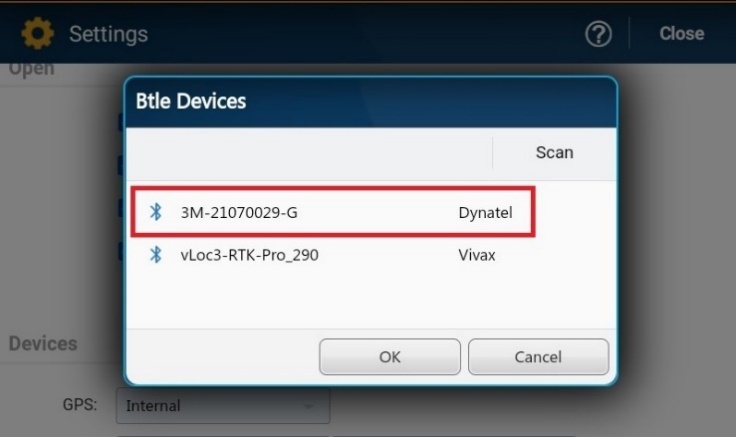
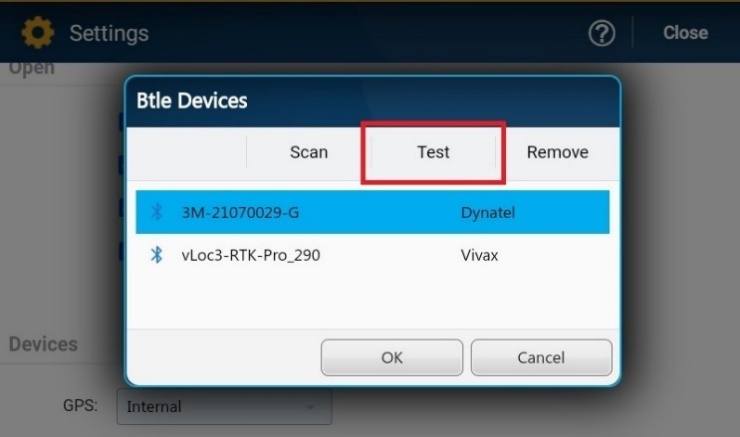
- Identify the 3M locator from the list and tap “Test”
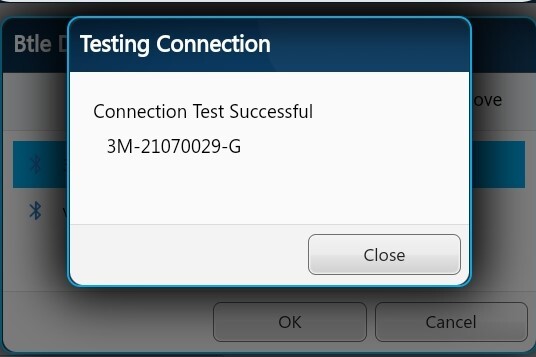
- If the test was successful, you should get a “Connection Test Successful” notification as depicted in the image below.
-
Tap “Close” and with the 3M locator still selected, tap “OK”
-
In the settings page, next to the first locator dropdown, a second dropdown menu will appear where you will select your 3M locator model number (In this case the model number is 3M-21070029-G)
Collecting Data with the 3M™ Dynatel™ X-series Locators:
-
Log into PointMan and open a project
-
Tap the “New” button
-
Select a System and Component, tap “OK”
-
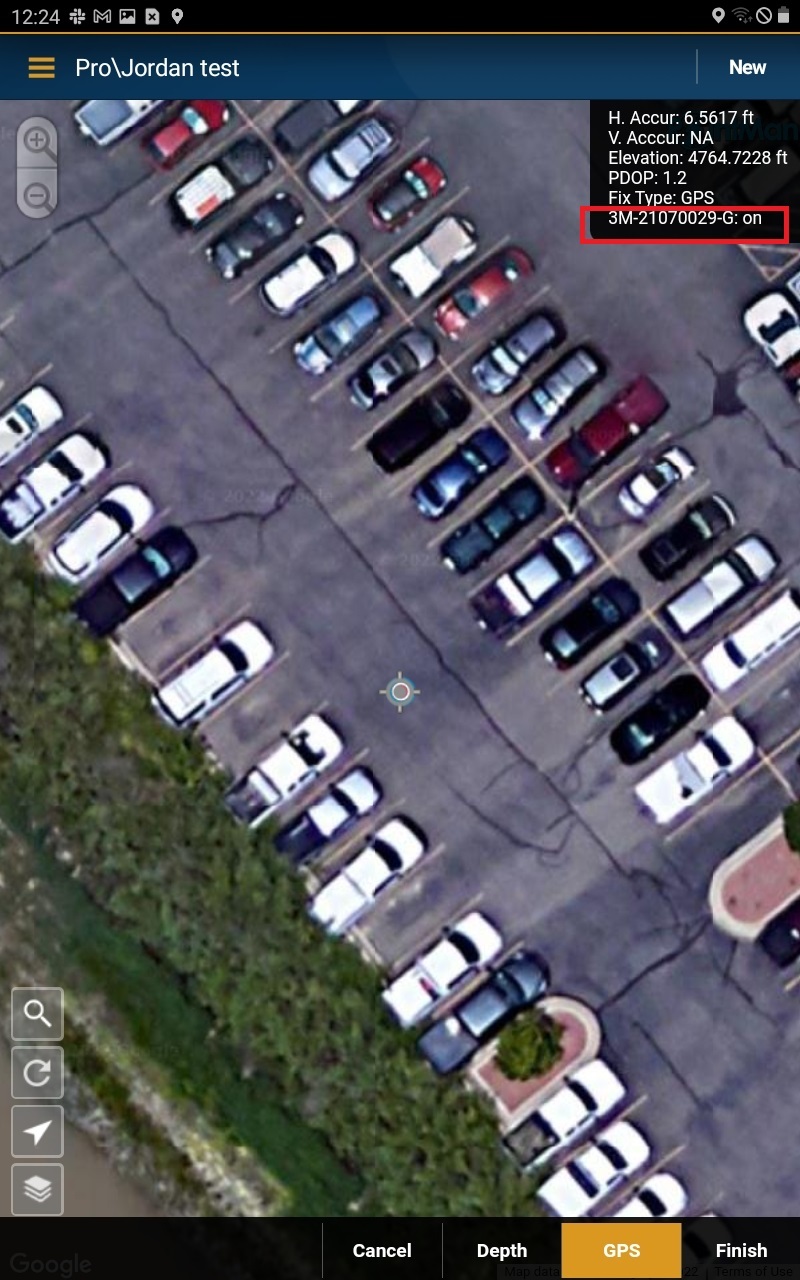
The status page will display the Accuracy of the Locator and that the 3M is connected (Locator Status should say (“Your 3M model number: On”)
-
Click the “GPS” button to obtain your location
-
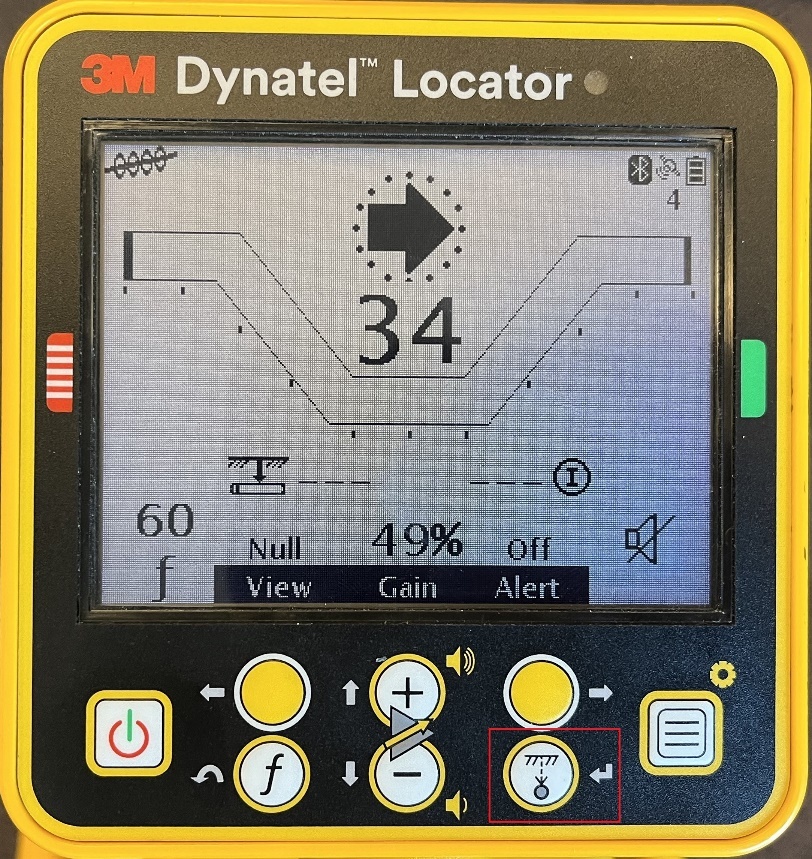
To capture a feature in PointMan: On the 3M Locator, tap the Enter Key (Red Box) and then tap the yellow button above (Yellow Box) to “Log” a point
-
If you are collecting a point, skip this step. Otherwise, repeat Step 6 as many times as needed to complete the collection of points. When locate is complete, tap “Finish” in the PointMan app
-
To view the pedigree/metadata: Tap “Details” for Points and “Pedigree” for Lines and Polygons
Troubleshooting
If you are unable to connect to the 3M Locator or are having trouble obtaining a GPS fix, follow the steps below:
Unable to Connect your Device to the 3M™ Dynatel™ 7550X/7573X Locator?
-
Go into PointMan settings page and set the Locator to “None”
-
Log out of PointMan and clear the Application
-
Turn off the Locator
-
Log into PointMan and open a project
-
Turn on the Locator
-
Continue setup as shown above
Unable to obtain a GPS fix?
-
Go outside to obtain a better satellite reading
-
Move locations (buildings/trees can affect GPS reading)
-
Close and re-open the Test GPS dialogue box
-
Disconnect all devices connected via Bluetooth and reconnect just the necessary devices
-
Test if you can obtain a GPS fix when Internal is selected from the GPS dropdown
-
Disconnect devices, turn on Safe Launch, and repair the necessary devices
If you are still unable to connect the 3M Locator or get a GPS Fix, please send a Log File to support@prostarcorp.com and include a brief description of what you are experiencing as well as what steps you have taken to troubleshoot the issue, so we may address your issue in a more timely and efficient manner.