Adding folders/subfolders is a quick and easy way to sort your features.
Setting up Folders
-
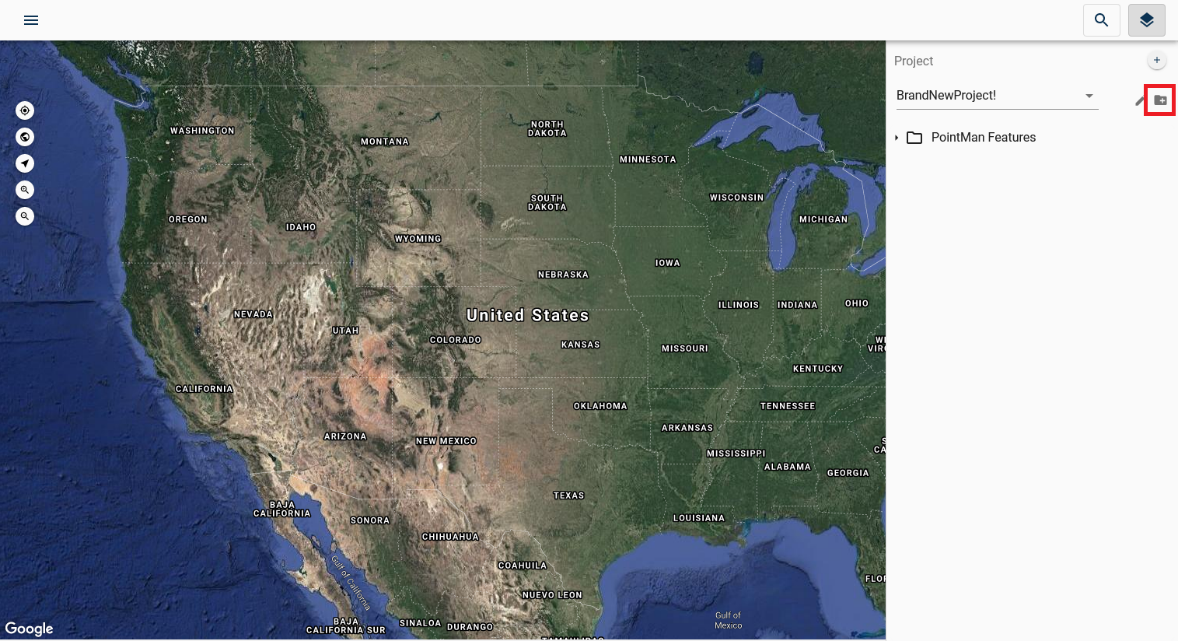
Open the Project Panel on the top right.
-
In the top right corner of the screen, next to your project name, click the Add Folder icon.
-
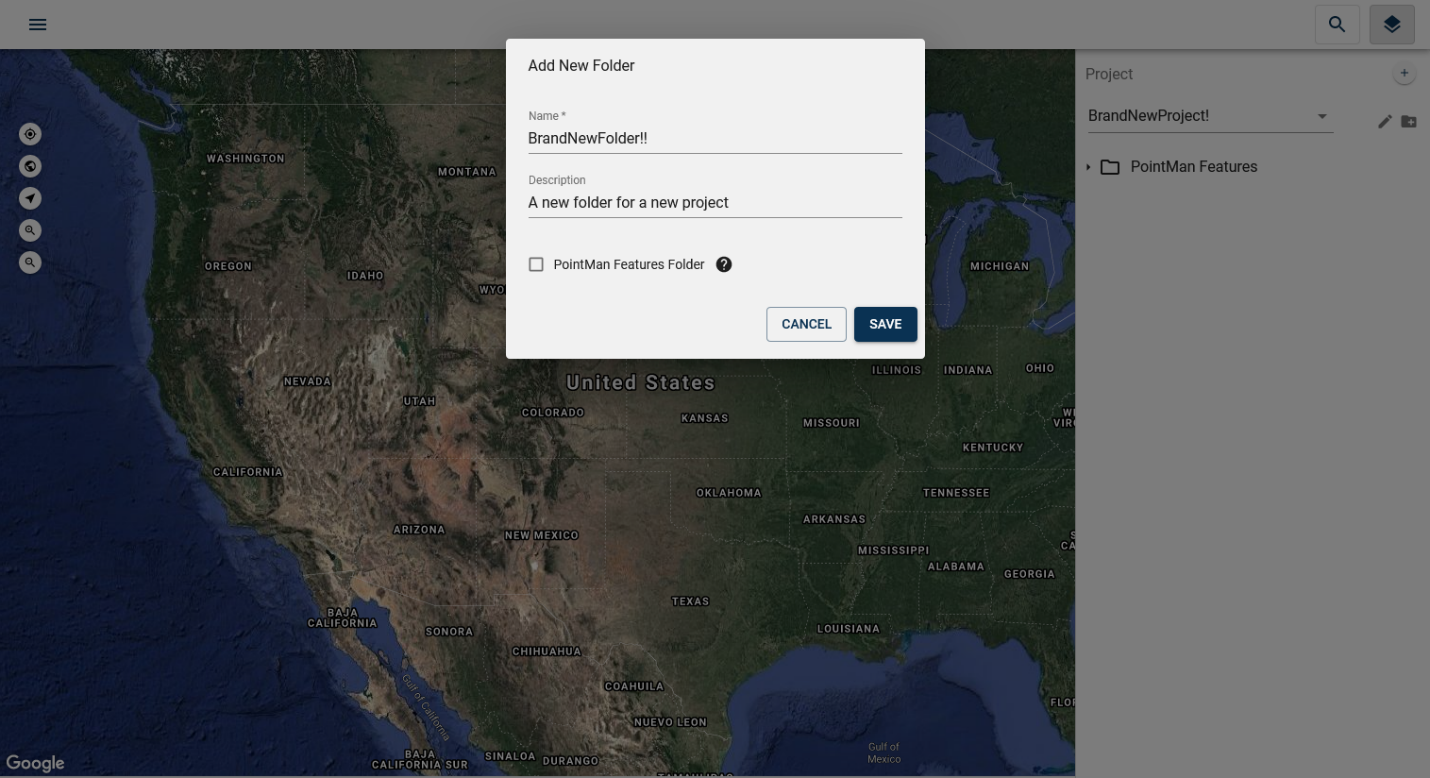
A dialogue will open. Fill in a name and you may give your folder a description if you would like.
-
If you would like to make this folder a PointMan Features Folder check the corresponding box.
-
Select Save
-
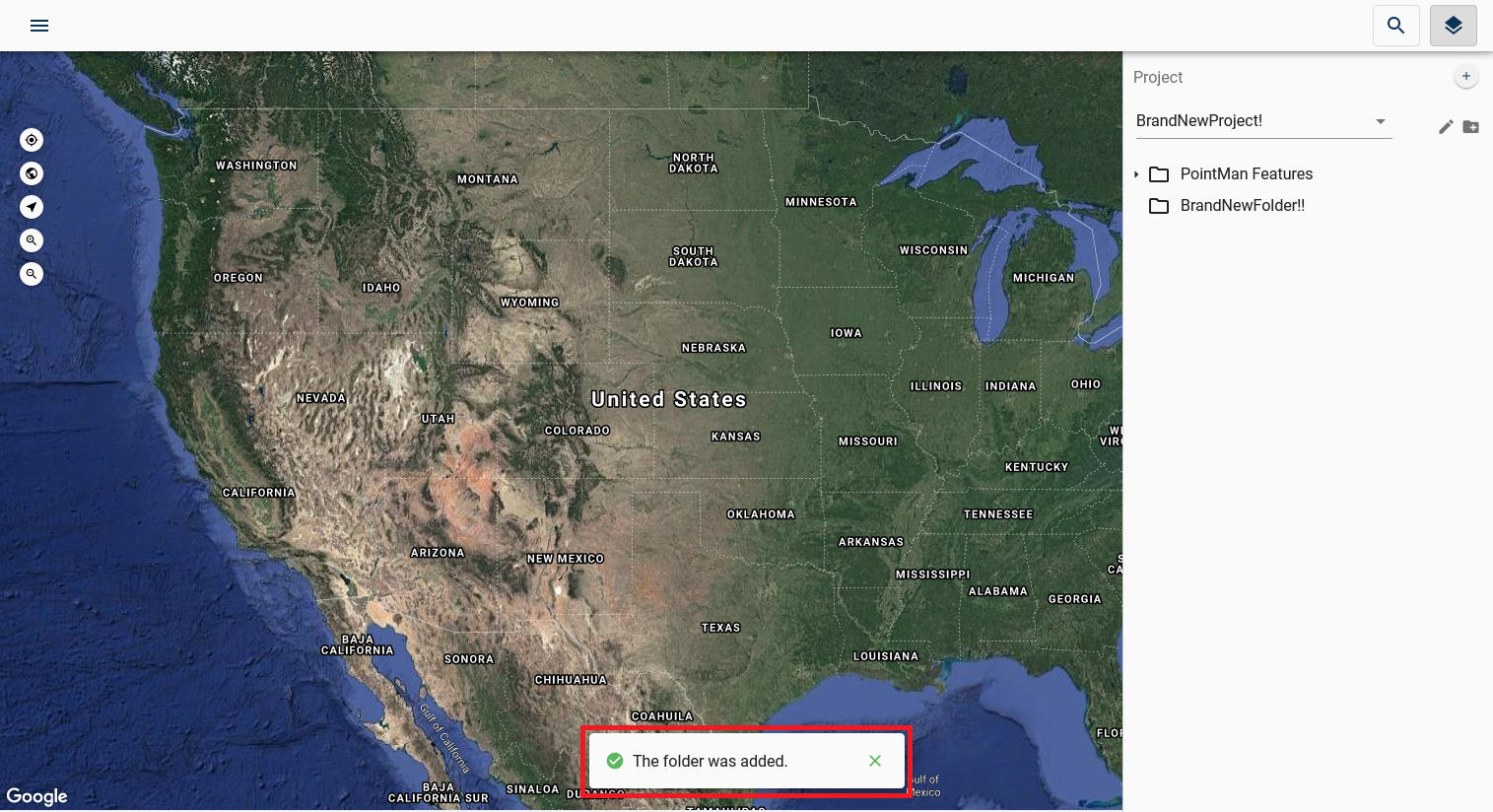
The dialogue will close, and you will see a notification at the bottom of your screen.
Adding Subfolders
-
To add a subfolder, follow steps 1-3 to create a basic folder. Otherwise, skip this step if you already have a Basic Folder you would like to use.
- Note: The primary folder for subfolders cannot be a PointMan Features Folder
-
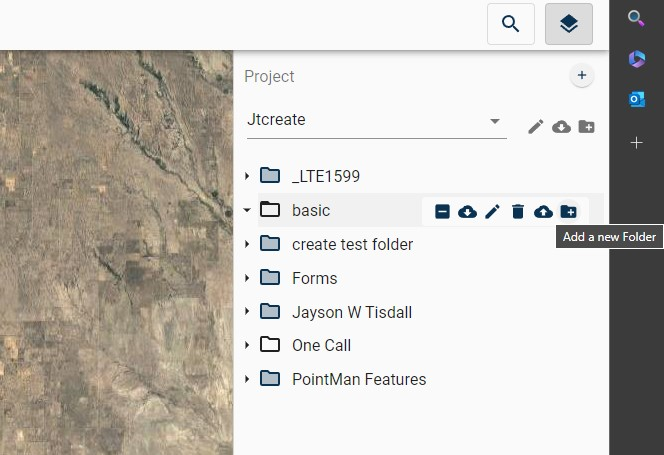
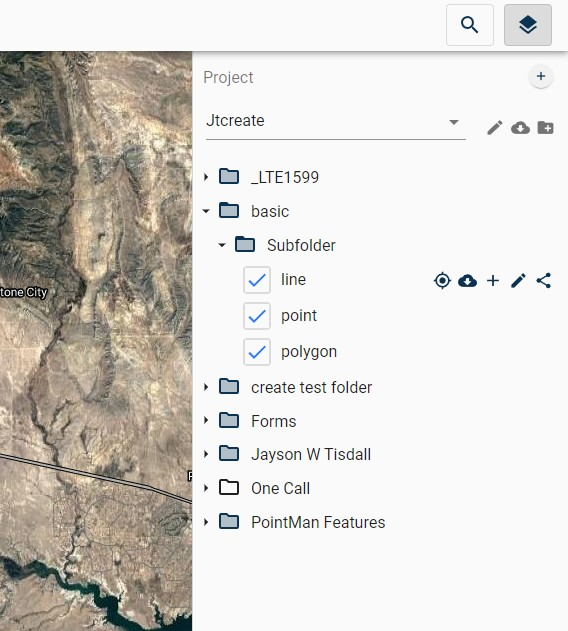
Hover over the basic folder and you will see options appear to edit that folder. Look for the one that looks like a folder with a plus Icon and the tooltip will say “Add a new folder”
-
Click on this option and repeat steps 3-6 to create a new folder. This will appear as a subfolder within the basic folder
-
Note: There is no limitation to subfolder type as it can either be a Basic Folder or a PointMan Features Folder.
-
-